SSO and SAML Configuration
Why SSO matters for enterprise deployments
Single Sign-On (SSO) is a non-negotiable requirement in most enterprise IT environments. It centralises authentication — users log in once through your company's identity provider (IdP) and gain access to all connected applications without a separate password for each. For the administrator, SSO means:
- Single point of deprovisioning — when an employee leaves, disabling them in the IdP immediately blocks their access to all SSO-connected applications including Claude. No separate "remember to deactivate in Claude" step.
- Consistent authentication policy — your IdP enforces MFA, session timeouts and access policies. Claude inherits them.
- Audit trail — authentication events are logged in the IdP's audit trail, not scattered across each application.
For your IT security team, SSO integration is typically a prerequisite for signing off on any SaaS tool.
How SAML 2.0 works with Claude
Claude Enterprise uses SAML 2.0 for SSO. SAML is a widely supported open standard; every major enterprise IdP supports it.
The flow:
- User navigates to claude.ai and clicks "Sign in with SSO" (or is redirected automatically if domain auto-join is configured).
- Claude redirects the user to your IdP's login page.
- The user authenticates with the IdP (entering their company credentials, completing MFA, etc.).
- The IdP sends a digitally-signed SAML assertion back to Claude confirming the user's identity and attributes.
- Claude grants access and creates or matches the user's account.
You configure this once in both Claude's Admin Console and your IdP. Once it works, it works silently for every user.
Supported identity providers
Claude Enterprise supports any SAML 2.0-compliant IdP. The most commonly used integrations are:
- Okta — the most widely deployed enterprise IdP; Anthropic has a pre-built app in the Okta Integration Network (OIN).
- Microsoft Azure Active Directory (Entra ID) — standard in Microsoft-centric environments; use the Enterprise Applications gallery.
- Google Workspace — available if your organisation uses Google as the IdP; configure via Google Admin → Apps → SAML apps.
- Ping Identity / PingFederate — common in large financial services and government environments.
- OneLogin — supported via standard SAML 2.0.
If your IdP is not listed, it will still work if it supports SAML 2.0. Contact Anthropic support for non-standard configurations.
Configuration steps
Step 1: Gather Claude's SAML metadata
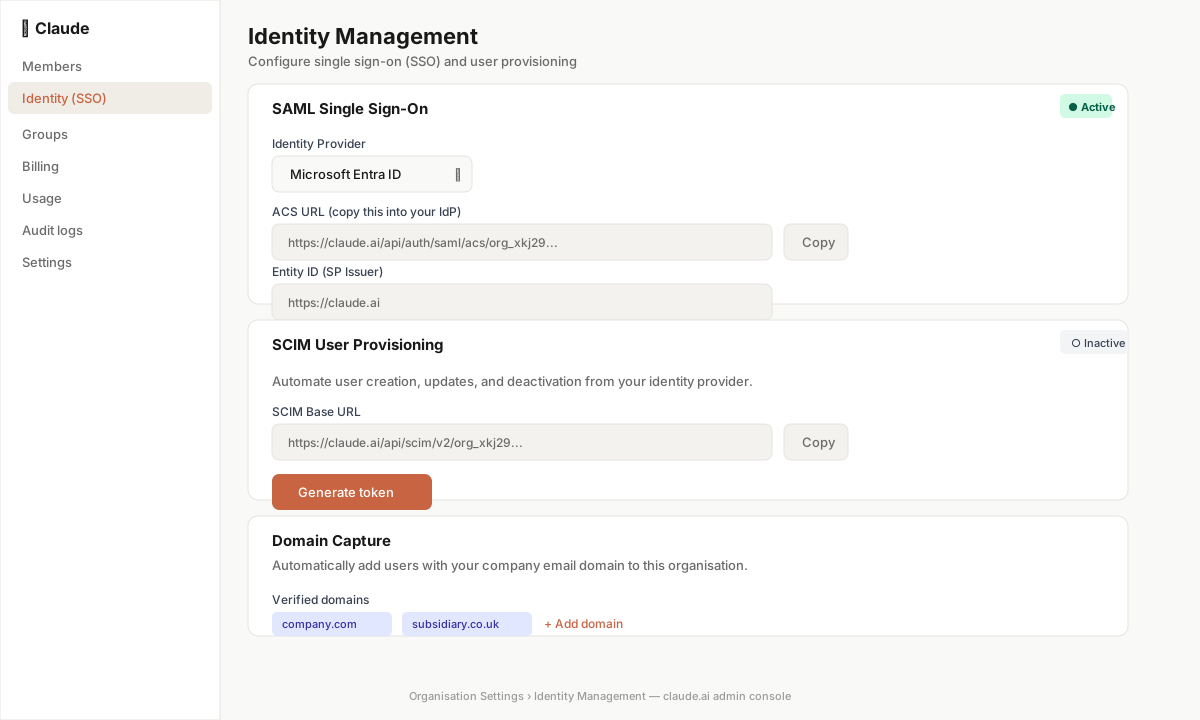
In the Admin Console, navigate to Security → SSO. You will see:
- Entity ID (Audience URI) — identifies Claude to your IdP
- ACS URL (Assertion Consumer Service URL) — the endpoint Claude uses to receive SAML assertions
- Metadata URL — some IdPs can auto-populate settings by reading this URL
Copy or download these values. You will need them in your IdP.
Step 2: Create the application in your IdP
The steps vary by IdP, but the general pattern is:
Okta:
- In the Okta admin console, go to Applications → Browse App Catalog.
- Search for "Claude" or "Anthropic". If found, click "Add Integration" — this pre-populates most fields.
- If not found, create a new SAML 2.0 app manually.
- Enter Claude's ACS URL as the Single Sign-On URL.
- Enter Claude's Entity ID as the Audience URI.
- Under Attribute Statements, map your IdP's email field to
emailand optionally your display name field toname. - Assign the application to the relevant users or groups.
- Download the IdP metadata XML or copy the SSO URL and certificate.
Azure AD / Entra ID:
- In the Azure portal, go to Entra ID → Enterprise Applications → New application.
- Choose Create your own application, name it "Claude Enterprise", select "Integrate any other application you don't find in the gallery".
- Under Single sign-on, select SAML.
- In Basic SAML Configuration, enter the Entity ID and Reply URL (ACS URL) from Claude's console.
- Add a claim mapping:
user.mail→email. - Download the Federation Metadata XML from Azure.
- Assign users or groups under Users and groups.
Google Workspace:
- In Google Admin, go to Apps → Web and mobile apps → Add app → Add custom SAML app.
- Enter the ACS URL and Entity ID from Claude's console.
- Map the Primary email attribute to
email. - Turn the app ON for the relevant organisational units.
- Download the IdP metadata.
Step 3: Configure the IdP details in Claude's Admin Console
Back in Security → SSO, enter:
- IdP Metadata URL or XML — paste the metadata from your IdP, or enter the metadata URL directly. This populates the IdP's certificate and SSO URL automatically.
- Email attribute name — the SAML attribute that contains the user's email address (usually
emailorhttp://schemas.xmlsoap.org/ws/2005/05/identity/claims/emailaddressfor Azure).
Click Save and then Test SSO to verify the connection before enabling it for all users.
Step 4: Test and enable
The Test SSO button opens a new browser window and runs through the authentication flow. Verify that:
- The IdP login page appears correctly
- You can authenticate
- You are redirected back to Claude and successfully logged in
- Your user account appears in the Members list with the expected attributes
Once the test succeeds, enable SSO. Decide whether to allow non-SSO login as a fallback (useful during the transition period but reduces security) or require SSO exclusively.
SCIM provisioning
SCIM (System for Cross-domain Identity Management) extends SSO by automating user lifecycle management. With SCIM:
- When a new employee is added to an IdP group assigned to Claude, they are automatically provisioned in Claude — no invitation email.
- When an employee is deactivated in the IdP (on off-boarding), they are immediately deactivated in Claude — no separate admin action required.
- Profile changes in the IdP (e.g., a name change) sync automatically to Claude.
SCIM is configured in Security → SCIM Provisioning in the Admin Console. You will receive a SCIM endpoint URL and bearer token to enter in your IdP.
Okta SCIM setup: in your Claude Okta app, navigate to Provisioning → Configure API Integration and enter the SCIM URL and token. Enable Create Users, Update User Attributes and Deactivate Users.
Azure SCIM setup: in your Claude Enterprise Application in Azure, go to Provisioning and add the SCIM URL and token in the admin credentials section.
Scenario: an IT manager at a fast-growing startup
David manages IT at a 90-person fintech that is growing by 15–20 people per month. Manually inviting each new hire to Claude was consuming 30 minutes per week. He configures SCIM with Okta: now every new employee added to the "All Staff" Okta group is automatically provisioned in Claude within minutes, and every off-boarded employee is immediately deactivated. David recovers his 30 minutes and eliminates the risk of a former employee retaining access.
Troubleshooting common SSO issues
| Problem | Likely cause | Fix |
|---|---|---|
| User redirected to login but gets "access denied" | User not assigned to the app in the IdP | Assign the user or their group to the Claude app |
| SAML assertion fails with attribute error | Email attribute name mismatch | Check the attribute name in Claude's SSO settings matches what the IdP sends |
| SSO works for some users but not others | Group assignment incomplete | Verify the IdP group assigned to Claude includes all intended users |
| Test SSO succeeds but regular login does not | Browser cookie conflict | Clear cookies, try incognito mode |
| Certificate error | IdP certificate expired | Rotate the certificate in your IdP and re-download the metadata in Claude's console |
Key takeaway
SAML SSO is a one-time configuration effort that pays dividends for the life of the deployment. Prioritise it in week one. Once SCIM is also configured, user lifecycle management becomes largely automated, reducing both admin overhead and the security risk of stale accounts.
📖 Official Documentation See this in practice in Anthropic’s live support docs: