Managing Users
The user lifecycle
Every person in your Claude Enterprise organisation goes through a lifecycle: they are invited, they activate their account, they use Claude, and eventually (when they leave the organisation or no longer need access) they are deactivated. Managing this lifecycle well is a fundamental IT governance task.
Neglecting it creates compounding risks: former employees retain access to your AI workspace, seat costs accumulate for inactive accounts, and you have no clear picture of who is actually using Claude.
Roles
Claude Enterprise has two user roles:
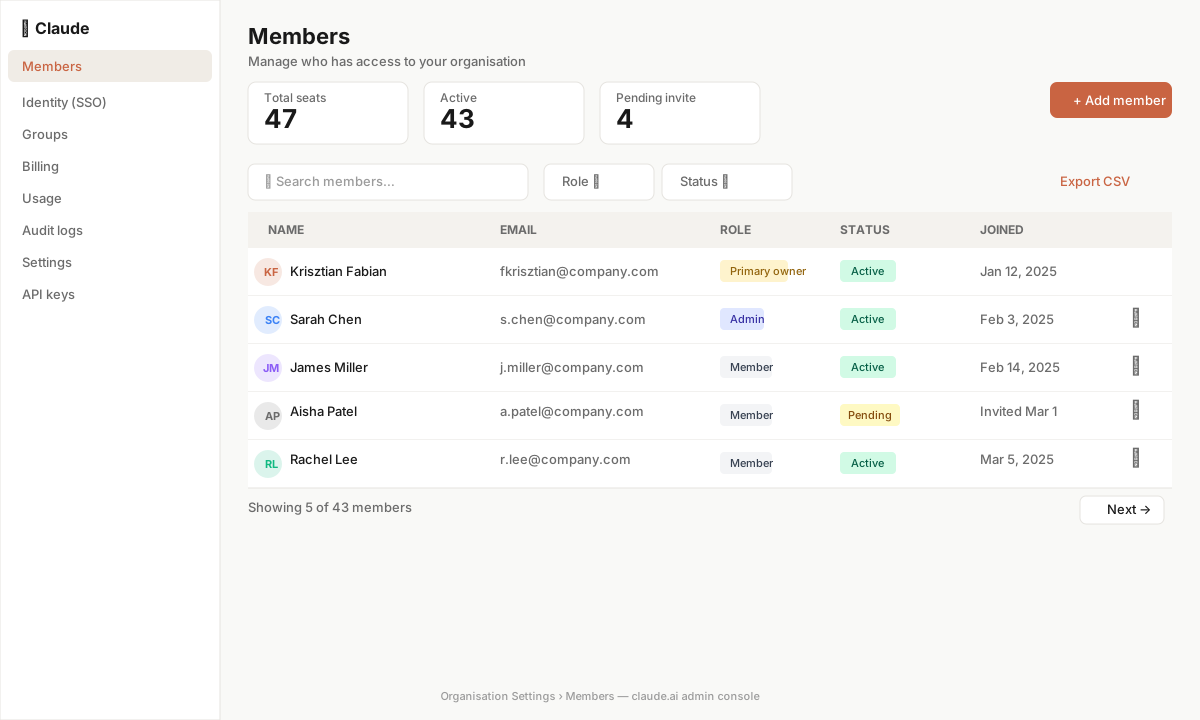
Member — the standard role. Members can use Claude, create Projects, share conversations and manage their own settings. They cannot access the Admin Console, see other users' conversations, or change organisation-wide settings.
Admin — full administrative access. Admins can see and change all settings in the Admin Console, manage all users, view all Projects, and access organisation-level usage analytics. Admins can also use Claude as normal users.
Best practice: assign Admin only to the people who genuinely need to make administrative changes — typically 2–4 people in a large organisation. Do not assign Admin to managers just because they are senior; it is a technical role.
Inviting users
Single invitation
- In the Admin Console, navigate to Members.
- Click Invite members.
- Enter the user's email address.
- Select their role (Member or Admin).
- Click Send invitation.
The user receives an email from Anthropic with a link to activate their account. If they already have a personal claude.ai account with that email, they will be prompted to link it to the organisation or create a separate session.
Bulk invitation
For larger cohorts, the invite form accepts comma-separated email addresses. Enter up to 50 addresses at once, select the role, and send. All invitations are sent simultaneously.
For very large onboarding events (100+ users): consider using SCIM provisioning (covered in M62-L2) rather than manual bulk invitations, especially if your identity provider already has a complete employee directory. SCIM-provisioned users do not receive an invitation email — they log in via SSO automatically on their first visit.
Domain auto-join
If you have verified ownership of your company's email domain (e.g., yourcompany.com), you can enable Domain auto-join. When this is on, any user who signs up for claude.ai using a matching email address is automatically added to your organisation as a Member. This eliminates the need to proactively invite every new employee.
To enable domain verification: go to Security in the Admin Console and follow the DNS TXT record verification steps. Once verified, toggle Domain auto-join on.
Caution: domain auto-join means any employee can enter your organisation without an explicit admin action. Ensure your acceptable-use policy and onboarding resources are accessible to new arrivals before enabling this.
Monitoring pending invitations
Invitations that have not been accepted appear with an "Invited" status in the Members list. Sort by status to see who has not yet activated.
If an invitation is more than 7 days old and unaccepted, resend it — the link may have expired or been filtered by a spam system. If a user repeatedly does not activate, check whether: (a) the invitation email is going to spam, (b) the user has an existing personal account that is conflicting with the activation flow, or (c) the user is blocked from creating accounts by a browser policy.
Deactivating users
When a member leaves the organisation:
- Navigate to Members in the Admin Console.
- Find the user (filter by name or email).
- Click the three-dot menu next to their name.
- Select Deactivate.
Deactivated users immediately lose access to claude.ai. Their conversation history is retained in the system per your retention settings. If the departing user was under a GDPR right-to-erasure obligation, submit a data deletion request via Privacy & Data → Data deletion after deactivating.
Best practice: add Claude deactivation to your off-boarding checklist alongside other SaaS tools (Slack, Google Workspace, Salesforce, etc.). An IT ticketing workflow triggered by an HR off-boarding event is the most reliable mechanism.
Changing roles
To promote a Member to Admin or demote an Admin to Member:
- Find the user in Members.
- Click the three-dot menu.
- Select Change role.
- Confirm.
Role changes take effect immediately. The user does not need to log out and back in.
Viewing user activity
The Members list shows the Last active date for each user. This is the last date they sent a message in the Claude interface. Use this to identify:
- Users who accepted invitations but have never sent a message (investigate: onboarding failure, or role mismatch — they were invited but do not have a use case)
- Users who were active but have gone dormant (investigate: lost interest, found the tool unhelpful, or use case changed)
- Users who have been active every day (your champions — engage them for case studies and peer training)
Scenario: quarterly user audit
Sarah, the IT admin at a 180-person consultancy, runs a quarterly user audit. She exports the Members list to CSV (via the browser, copy-paste the table), adds a column for "Last active (days ago)" and filters for anyone last active more than 60 days ago. She finds 23 such accounts: 11 are former employees whose deactivations were missed in off-boarding, and 12 are current employees who signed up but never returned. She deactivates the 11 former employees immediately and emails the 12 dormant current employees with a re-engagement message and a link to a 20-minute getting-started guide. By next quarter, 8 of the 12 dormant users are active again.
Key takeaway
User management is a repeating operational task, not a one-time setup. Build it into your IT processes — automate what you can with SCIM and domain auto-join, and run a quarterly audit for what cannot be automated.
📖 Official Documentation See this in practice in Anthropic’s live support docs: